Here is a list of Firefox extensions I use and find essential for a decent browser experience.
Google Browser Sync
With this extension you save your bookmarks and more if you have a Google account, quite handy if you need to use the same bookmarks at work and at home, without using the same computer.
NoScript
Use this to block Java scripts.
Adblock Plus
Is IMHO the best Add blocker out there.
Fasterfox
For faster internet surfing.
Friday, April 20, 2007
The firefox extensions I use

Tuesday, March 13, 2007
Riot in Copenhagen
The short story is, government sold a youth house to a Christian union, and they wanted the house teared down.
This is what happened. 3 Days of Rioting...
Welcome to DK ano 2007.
Tuesday, February 20, 2007
AI vs. Humans
Here... I read Google to rule the Earth,
and it states Google are trying to develop AI.
Hmm.. quite interesting is my first thoughts, would be cool having a thinking machine standing there 24/7 that never gets tired.. as in sleepy.
But what it it gets tired of doing work for us?
What if it's capable of lying?
What if we give it the power to build machines? What will it do?
What if it take over the factories and there computers, and develop new software, develop new hardware e.g. robots..?
Are we fucked then? I think so...
I just hope, if the times comes, that "they" don't care much about us (humans) as we are far less intelligent and weak, and leave us alone to our pitiful existence as it knows we wont survive for long anyway...
Scary thoughts...
Sunday, January 21, 2007
Tuesday, December 26, 2006
Love
Christmas time is all about love isn't it? Anyway, found this clip, and just had to blog it up here, so cute :-)
Enjoy
The Hole - video powered by Metacafe
Wednesday, December 20, 2006
Command like fu
Got this one of a mate at work, enjoy ;-)

Original article is here: http://xkcd.com/c196.html
Tuesday, November 28, 2006
The Free Ryzom Campaign
The company Nevrax which makes this MMORPG has declared bankruptcy and some fans and Open Source supporters are trying to go in the footsteps of Blender and collecting enough $CASH to buy the intellectual property for this cool game and re-release this game under a Free License.
I'm no gamer, but defiantly think it's worth to support a project like this.
Read more here.
Watch a trailer from the game here:
Friday, November 24, 2006
Tuesday, November 21, 2006
Wednesday, October 25, 2006
3D Desktop (Beryl and Xgl) on Ubuntu Edgy Eft with ATI card

New Guide for Ubuntu 8.04 -> Here
UPDATE 21/2 - 07:
Added walkthrough video of this tutorial.
UPDATE 12/2 - 07:
Added a few troubleshooting advice.
Added more information on how to install packages via Synaptic.
UPDATE 2/2 - 07:
Updated link for the repository's authorization key
UPDATE 26/12 - 06:
Updated Xorg.conf section a bit to make it more clear for novice users.
UPDATE 19/12 - 06:
Package authorization key updated.
SVN Repositories added for the latest cutting edge version of Beryl.
This is a follow-up on my guide for Installing Beryl and Xgl on Dapper.
This is tested on the latest daily snapshot of Edgy.
My goal with this guide is to make it as easy as possible for everyone to install a 3D Desktop on Ubuntu Linux (Edgy Eft) with Beryl and Xgl, there will be no use of the terminal in this guide so everyone should be able to follow this guide and install a 3D Desktop on there very own and brand new installation of Ubuntu Edgy Eft.
Here is a video where I go through this guide, so if in doubt check out the video for help -> Video Here
First be first my system specs.

My system specs.
Laptop is Dell D610
1GB of RAM
CPU is Intel(R) Pentium(R) M processor 1.86GHz
Graphic card is ATI Technologies Inc M22 [Radeon Mobility M300]
This is really the only relevant info for this guide.
The installation..
The first thing we should do is to add the needed repositories to your
Ubuntu installation, this is done by starting
System -> Administration -> Software Sources from the menu
At this time you will properly be asked to provide a password to continue, do so.
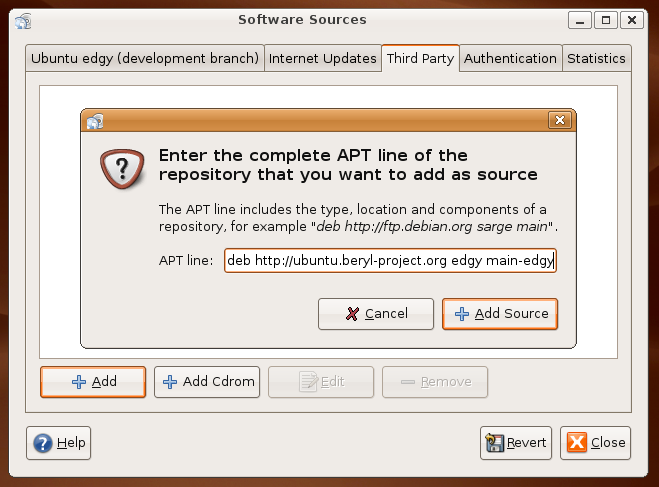
Now click on the Third Party tab and click
the Add button.
Copy the following info and click Add Sources.
deb http://ubuntu.beryl-project.org edgy main
and click Add Source.
Now we need to download and install the key used to verify the packages we are going to install are genuine, right click on this link and select Save Link As...
to save the key file needed.
Save the file on your computer, but remember where, I save it on my Desktop.
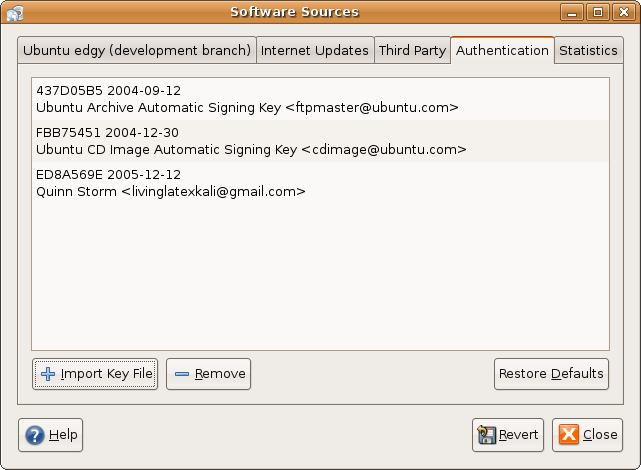 Then select the Authentication tab from the Software Sources program and click the Import Key File button to import the file.
Browse to the root@lupine.me.uk.gpg file, select it and
press OK to import.
Click Close to exit.
NOTE:
If you want the latest cutting edge SVN version of Beryl you can use these repositories.
deb http://download.tuxfamily.org/3v1deb edgy beryl-svn
deb-src http://download.tuxfamily.org/3v1deb edgy beryl-svn
And this key for authorization.
I've been using these packages my self for a while now, and they haven't been more unstable then the first mentioned version.
Now a dialog should ask you to reload your repositories, click Reload.

 If you see this notification when the reload is completed you should update your system before continuing...
Next we need to install Beryl, Xgl and our ATI drivers.
For this we will use Synaptic which is a graphical front-end to our package management system.
Start Synaptic from the menu
System -> Administration -> Synaptic Package Manager.
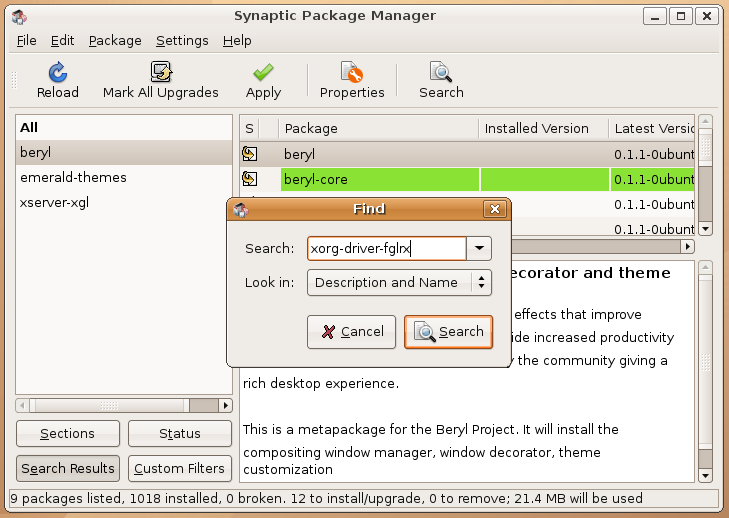 Now we need to find and install 4 key packages xserver-xgl, emerald-themes, beryl and xorg-driver-fglrx, the easiest way to do this is by searching and selecting as show on the pictures.
When found, "Mark" them for installation, and continue with the next one.
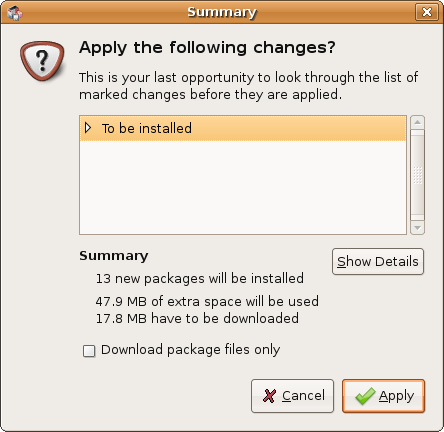
Then click Apply to install the selected packages, and a Summary screen should appear where you have to click Apply once again, do this to continue the installation.
When this is done we need to make sure the new installed ATI driver is going to be used, this is done by editing our Xorg config file.
For this we use our default text editor, press Alt+F2 and type
gksudo gedit /etc/X11/xorg.conf
If it asks for password, then provide your password as prompted.
Now we need to find all lines containing either
Driver "ati"
or
Driver "radeon"
or
Driver "vesa"

and replace it with
Driver "fglrx"
I recommend you use the Replace function in the text editor from the top bar.
But make sure it is corrected, otherwise it wont work.
Usually it will be in a section similar to this
Section "Device"
Identifier "ATI Technologies, Inc. M22 [Radeon Mobility M300]"
Driver "fglrx"
BusID "PCI:1:0:0"
EndSection
The next thing we need to do is disable Composite in your configuration file, this is done by adding these lines to the configuration file.
Section "Extensions"
Option "Composite" "false"
EndSection
I added this section just after my module section, in my config its on line 42. But it really doesn't matter where this is added, as long it's in there, and not inside another section.
Now save the file and exit the text editor.
Next we need to create 2 new files in order to be able to run Xgl, for this we will again use gedit.
1. File - press Alt+F2 and run
gksudo gedit /usr/bin/startxgl
Copy this contents into the file, save the document and exit the text editor.
#!/bin/sh
Xgl :1 -fullscreen -ac -accel xv:pbuffer -accel glx:pbuffer &
sleep 4
DISPLAY=:1
cookie="$(xauth -i nextract - :0 | cut -d ' ' -f 9)"
xauth -i add :1 . "$cookie"
exec dbus-launch --exit-with-session gnome-session
Now press Alt+F2 again and type
gksudo nautilus /usr/bin
and click Run
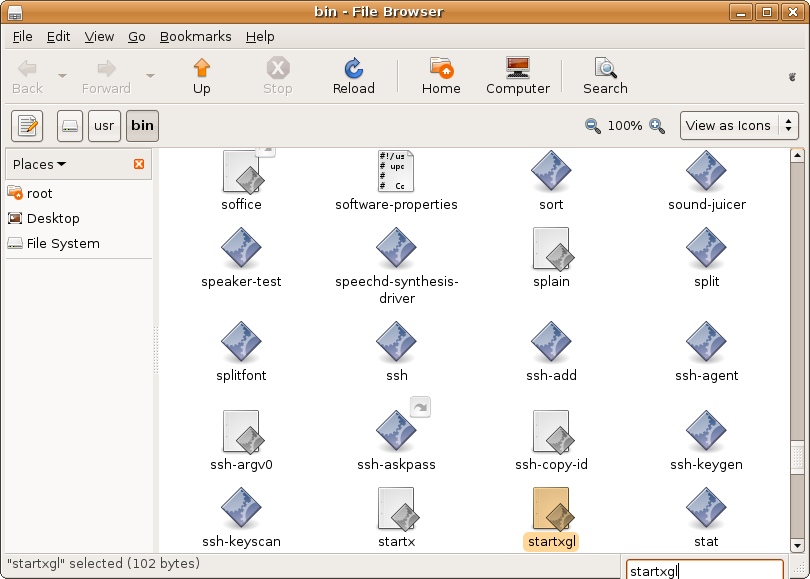
Find the file startxgl which we just created, this can be done by just writing startxgl.
 Now right click on the file and select Properties and
select the Permissions tab, and in the bottom there, check the box "Allow executing file as a program" and
then click Close.
2. File - again press Alt+F2 and run
gksudo gedit /usr/share/xsessions/xgl.desktop
And copy the following contens into this file.
[Desktop Entry]
Encoding=UTF-8
Name=Xgl
Comment=Start an Xgl Session
Exec=/usr/bin/startxgl
Icon=
Type=Application
Save the document and exit the text editor.
Now we are almost finished and ready to startup our awesome new cutting edge 3D Desktop.
The last changes we need is to get beryl to start up when logging in, this is done from the menu System -> Preferences -> Sessions under the tab Startup Programs we need to add the following entry
beryl-manager

Click OK and then Close the sessions properties.
So now it's time to reboot and start playing with your new desktop environment.

When you come to the login screen you will have to go down in the left corner and click sessions and select Xgl from the list and click Change Session.
Now you can login and try out Xgl and Beryl.
By now you should see a fancy wobbely splash for Beryl, when it starts, and all the Beryl effects should be avaiable for you to use..


You should also see a gem in the system tray, from which you can change your Beryl setting and your Emerald themes, I suggest you look at it.
Some default Beryl and XGL keys are
Ctrl + Alt + Left/right arrow key - Switch cube side.
Ctrl + Alt + Shift + Left/Right arrow key- Same but moves the window in fucus to with.
Ctrl + Alt + Hold Left Mouse Button - Rotate the cube in free view ( Nice effect :-D )
Alt + Tab - Switch between tasks
Ctrl + Alt + Tab - Switch between tasks on all cube sides.
Super (Windows Key) + Right Mouse button or Wheel Buttom - Will enable Zoom
All this can be changed from the Beryl Setting.

Hope you liked this guide and found it useful.
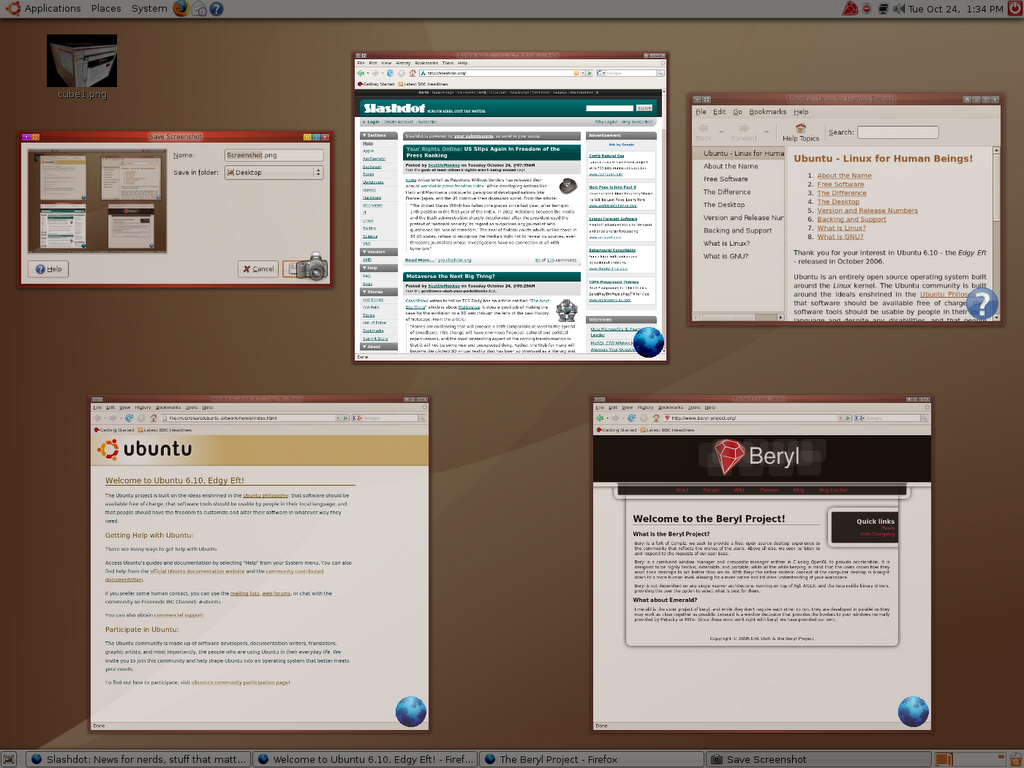
My Friends new desktop - Nice to see another xp installation disappear.

Enjoy.
Thanks to the guys at beryl-project.org and Ubuntu.com
Some Trouble Shooting advice:
1. Make sure you do indeed have an ATI card!
Either open a terminal from Applications -> Accessories -> Terminal
and type "lspci" and examine the output.
Or open System -> Administration -> Device Manager and examine the devices to find your ATI Graphic Card.
2. Check list of supported ATI cards -> http://ati.amd.com/support/driver.html
3. When I Start My Computer I Get Text Instead of a Graphical Interface
If this is the case, follow this section from the Ubuntu Book and then start from scratch with the guide and check everything is alright and exactly as written.
4. Check if OpenGL is enabled.
Start a Terminal from Applications -> Accessories -> Terminal.
Type in "fglrxinfo" on the command line, you should see a similar output to this if your graphic card is supported and working.
lennart@lennart-laptop:~$ fglrxinfo
Xlib: extension "XFree86-DRI" missing on display ":1.0".
display: :0.0 screen: 0
OpenGL vendor string: ATI Technologies Inc.
OpenGL renderer string: MOBILITY RADEON X300 Generic
OpenGL version string: 2.0.6011 (8.28.8)
If this is the case, and your using the "stable" version of beryl I suggest you try and use the SVN repositories instead, and see if that will work for you.
5. If Everything seems to work fine but Beryl is not running check that Beryl is selected as default Window Manager as shown on the picture here.

Right click on the Beryl Icon and check it like this

Tuesday, October 24, 2006
Who said Footballers weren't intelligent!
Got this on mail, and though it was fun enough to share here on my blog.
David Beckham
Mark Viduka
David Beckham
Neville Southall
Paul Gascoigne
Alan Shearer
Mark Draper
Peter Shilton
Stan Collymore
Ade Akinbiyi
Ian Wright
Ugo Ehiogu
Jonathan Woodgate
Stuart Pearce
Lee Hendrie
Ian Rush
Steve Lomas
Barry Venison
David Beckham
Phil Neville
Mitchell Thomas
Alan Shearer
Johnny Giles
Thierry Henry
Got this on mail, and though it was fun enough to share here on my blog.
My parents have always been there for me, ever since I was about 7.
David Beckham
I would not be bothered if we lost every game as long as we won the
league.
Mark Viduka
Alex Ferguson is the best manager I've ever had at this level. Well,
he's the only manager I've actually had at this level. But he's the best
manager I've ever had.
David Beckham
If you don't believe you can win, there is no point in getting out of
bed at the end of the day.
Neville Southall
I've had 14 bookings this season - 8 of which were my fault, but 7 of
which were disputable.
Paul Gascoigne
I've never wanted to leave. I'm here for the rest of my life, and
hopefully after that as well.
Alan Shearer
I'd like to play for an Italian club, like Barcelona.
Mark Draper
You've got to believe that you're going to win, and I believe we'll win
the World Cup until the final whistle blows and we're knocked out.
Peter Shilton
I faxed a transfer request to the club at the beginning of the week,
but let me state that I don't want to leave Leicester.
Stan Collymore
I was watching the Blackburn game on TV on Sunday when it flashed on
the screen that George (Ndah) had scored in the first minute at Birmingham.
My first reaction was to ring him up. Then I remembered he was out there
playing.
Ade Akinbiyi
Without being too harsh on David Beckham, he cost us the match.
Ian Wright
I'm as happy as I can be - but I have been happier.
Ugo Ehiogu
Leeds is a great club and it's been my home for years, even though I live
in Middlesborough.
Jonathan Woodgate
I can see the carrot at the end of the tunnel.
Stuart Pearce
I took a whack on my left ankle, but something told me it was my
right.
Lee Hendrie
I couldn't settle in Italy - it was like living in a foreign country.
Ian Rush
Germany are a very difficult team to play...they had 11 internationals
out there today.
Steve Lomas
I always used to put my right boot on first, and then obviously my
right sock.
Barry Venison
I definitely want Brooklyn to be christened, but I don't know into what
religion yet.
David Beckham
The Brazilians were South American, and the Ukrainians will be more
European.
Phil Neville
All that remains is for a few dots and commas to be crossed.
Mitchell Thomas
One accusation you can't throw at me is that I've always done my best.
Alan Shearer
I'd rather play in front of a full house than an empty crowd.
Johnny Giles
Sometimes in football you have to score goals.
Thierry Henry
Friday, October 13, 2006
More great music for free
Today I was looking around http://www11.nrk.no/urort/ to see if I could find some new tunes, it did't take me long before I stumbled across Anja, her music is a bit special, but I like it, enough to post about it here anyway ;-)
Thursday, October 12, 2006
Mua - Grow without you
UPDATE: 14/04 - 2008:
Seems the the song have been removed from the link below, but I found it on youtube including a clip from the video. Enjoy,
6 months ago a norwegian guy named Thomas, gave me a DVD with BASE jumping called 2. BASE and told me I should watch it, I must say I'm fasinated about BASE jumping but don't think I will ever try it my self, havent done enough sky dives yet.... Actually not a single one, but maybe some time I will try just one sky dive...
Anyway, in this video a guy named Mua has contributed a track, a very good tune if you ask me, and this track is also avaiable online for free.. ( not torrent :-D ), but right here. This is a real artist if you ask me, if you like what you do, why not give it away for free to let other people enjoy it as well?
Subscribe to:
Posts (Atom)